Independent page run by YTMP4. Not affiliated with, or endorsed by, any other site using the Y2meta name, or with YouTube or Google.
Y2meta is a name many people type when they want a quick way to save a YouTube video. This page gives you a working Y2meta YouTube downloader, run by YTMP4, and explains how to use it, which format to pick and what to do when a download fails. Paste a link in the box above, choose MP4 or MP3, and save the file. There is nothing to install and no account to create.
The name causes real confusion. Many websites use Y2meta in their address, and they are run by different people. So this guide also covers the questions most guides skip: which sites to be careful with, whether an app is worth installing, and what your options are if the site you used before has stopped working.
How to use this Y2meta YouTube downloader
The steps are the same on a phone, tablet or computer.
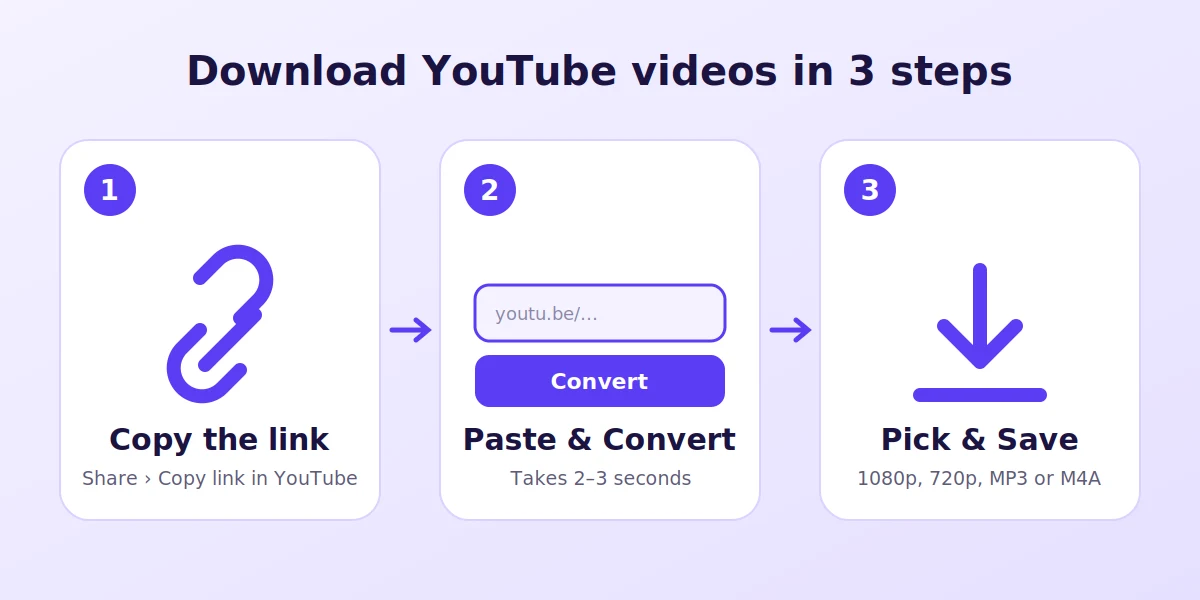
- Copy the link. In the YouTube app, tap Share, then Copy link. On a computer, copy the address from the top of your browser.
- Paste it into the box. Use the box at the top of this page, or tap the Paste button.
- Press Convert. The tool reads the link and shows the formats available for that video.
- Choose a file. Pick an MP4 quality or an audio option, then save it.
The file goes to your browser’s Downloads folder. On an iPhone, look in the Files app under Downloads. Short videos are usually ready quickly. Long ones need more time, so keep the tab open until the download begins.
Y2meta MP4 download: which quality to choose
A Y2meta MP4 download gives you a video file with sound that plays on almost every device. The right quality depends on the screen you will watch on and the storage you have.
| Quality | Best for | Size of a 10-minute video (rough guide) |
|---|---|---|
| 1080p | Laptops, TVs, large phones | 150-300 MB |
| 720p | Most phones | 70-150 MB |
| 480p | Saving storage or data | 35-70 MB |
| 360p | Older phones, slow connections | 20-40 MB |
These sizes vary a lot, because a fast sports clip needs more data than a talking head. A few other points are worth knowing:
- You can’t get more quality than the upload has. If a video was uploaded at 720p, choosing a higher setting won’t add detail.
- Not every video offers every option. The list you see shows what’s available for that video.
- For a small phone screen, 720p often looks almost the same as 1080p and takes far less space.
Y2meta MP3 download: saving only the audio
Use the audio option when you only need the sound, such as a podcast, lecture or language lesson. People also search for this as Y2meta MP3 or Y2meta audio. You can choose between two kinds of file:
- MP3 at 192 kbps. It plays on nearly everything, including car stereos, old MP3 players and USB sticks. A one-hour talk comes to about 86 MB.
- M4A (AAC). This keeps YouTube’s original audio without converting it again, so it’s usually a little smaller and slightly closer to the source.
A higher number can’t improve the sound beyond what YouTube has stored. If you don’t need MP3 for an older device, M4A is usually the better choice. MP3 files from YouTube won’t include proper song or artist tags, so use a free tag editor like MP3Tag or Kid3 if you want them.
Choosing a format in this Y2meta converter
People often search for a Y2meta converter, or ask how to Y2meta convert a video, but the choice is simple. Use this quick guide:
- Watching later on a phone or laptop: MP4 at 720p.
- Watching on a big screen: MP4 at 1080p, when it’s available.
- Listening on any modern phone: M4A.
- Listening in a car or on an old player: MP3.
Why people use a Y2meta downloader
Most people want a Y2meta downloader for ordinary reasons. They want to keep a lesson for a trip with no signal, save their own uploads, or avoid using mobile data every time they replay something. A browser tool suits those jobs because it needs no install, no extra storage for an app and no account.
This page works in Chrome, Safari, Firefox, Edge and other modern browsers on Android, iPhone, Windows, Mac and Linux. It can’t fetch private, members-only or age-restricted videos, because those need a signed-in account. A playlist link saves only the single video in the link, so repeat the steps for each one you want.
Y2meta app and Y2meta APK: do you need one?
No. You don’t need a Y2meta app to use this page, because it runs in your browser. We don’t offer a Y2meta APK.
Be careful with any Y2meta APK you find on other sites. An app installed from outside the Play Store or App Store can ask for permissions it doesn’t need, and the Y2meta name doesn’t tell you who built it. Before installing one, check who made it, read what permissions it asks for, and think about whether you need it at all. For most people, a bookmark to a browser tool does the same job.
Is Y2meta safe?
Is Y2meta safe? There isn’t one answer, because the name doesn’t belong to one site. Reviews of Y2meta-style sites report pop-up ads, redirects and notification requests, and some warn about phishing or malware. Different addresses can behave very differently.
These habits protect you on any downloader, including this one:
- Don’t run .exe, .msi or .apk files you weren’t expecting. A video should arrive as an MP4 file and audio as an MP3 or M4A.
- Block notification requests. A downloader doesn’t need permission to send you alerts.
- Close unexpected tabs. Don’t enter details or install anything they suggest.
- Never enter your Google or YouTube password. A tool that downloads public videos doesn’t need it.
About this page: we don’t ask for an account, and the tool needs only the link you paste. The site may show ads. If an ad opens a new tab, close it and return here.
Y2meta not working? Try these fixes
If you see Y2meta not working, the cause is usually one of these:
- The site you used has gone. Sites using this name can change address or close. Check the address and be careful with lookalike domains.
- The link is wrong. Copy it again using Share, then Copy link. A clean youtu.be link usually works best.
- The video is restricted. Private, age-restricted and some region-locked videos can’t be fetched.
- It’s a live stream. Wait until the stream ends and the video has finished processing.
- The download seems stuck. Long videos need time. Keep the tab open, and don’t let your phone’s screen lock.
- The file won’t save. Try another browser, check your storage, and switch off any download-blocking extension for this page.
- Nothing happens at all. Refresh, try again a few minutes later, or try another network.
Looking for a Y2meta alternative?
There are reports of a Y2meta service shutting down in the past, and sites using the name still come and go, so people often look for a Y2meta alternative. These are your main options:
| Option | Good for | Keep in mind |
|---|---|---|
| This page | Quick saves with no install | Public videos only |
| YTMP4 | Our main YouTube to MP4 site | Same tool family |
| YouTube Premium | Official offline viewing in the YouTube app | Paid, and offline videos stay inside the app |
| yt-dlp | Technical users who want full control | Runs from the command line |
If you watch mostly on your phone and can pay, YouTube Premium is the official route. If you’re comfortable with technical tools, yt-dlp is open source and very flexible. If you just want one file now, a browser tool is the simplest choice.
Y2mate vs Y2meta: are they the same?
Not necessarily. The names look alike and are often mixed up, and both are used by many different sites offering similar tools. Don’t assume two sites are connected because their names match. Judge each one by how it behaves: what it asks you to install, which permissions it requests, and whether its files arrive as expected.
Using downloads responsibly
Having a tool doesn’t give you rights to the content. YouTube’s terms limit downloading, and most music, films and shows are protected by copyright. Use this page for videos you made yourself, content whose owner lets you download it, Creative Commons or public domain works, and anything else you have permission to save.
Don’t re-upload or sell other people’s videos, or use them in your own work without permission. If you own a work and think it’s being misused, see our disclaimer and contact us.